
When a site asks how you want to get your sign-in codes, it's really asking a bigger question: should your account depend on your phone number, or on an app on your phone? That's the heart of the authenticator app vs SMS choice, and the answer decides what happens when your SIM is hijacked, your phone is stolen or you land somewhere with no signal.
It's a question a lot of people are facing right now. In Apple's chart feeds updated on 13 November 2026, Microsoft Authenticator was number 11 among top free iPhone apps in both the UK and Canada, and GOV.UK One Login, which offers either text codes or an authenticator app, was number 1 in the UK.
Here's how the two differ, what official guidance says, how to avoid locking yourself out, and which number to give for codes and recovery.
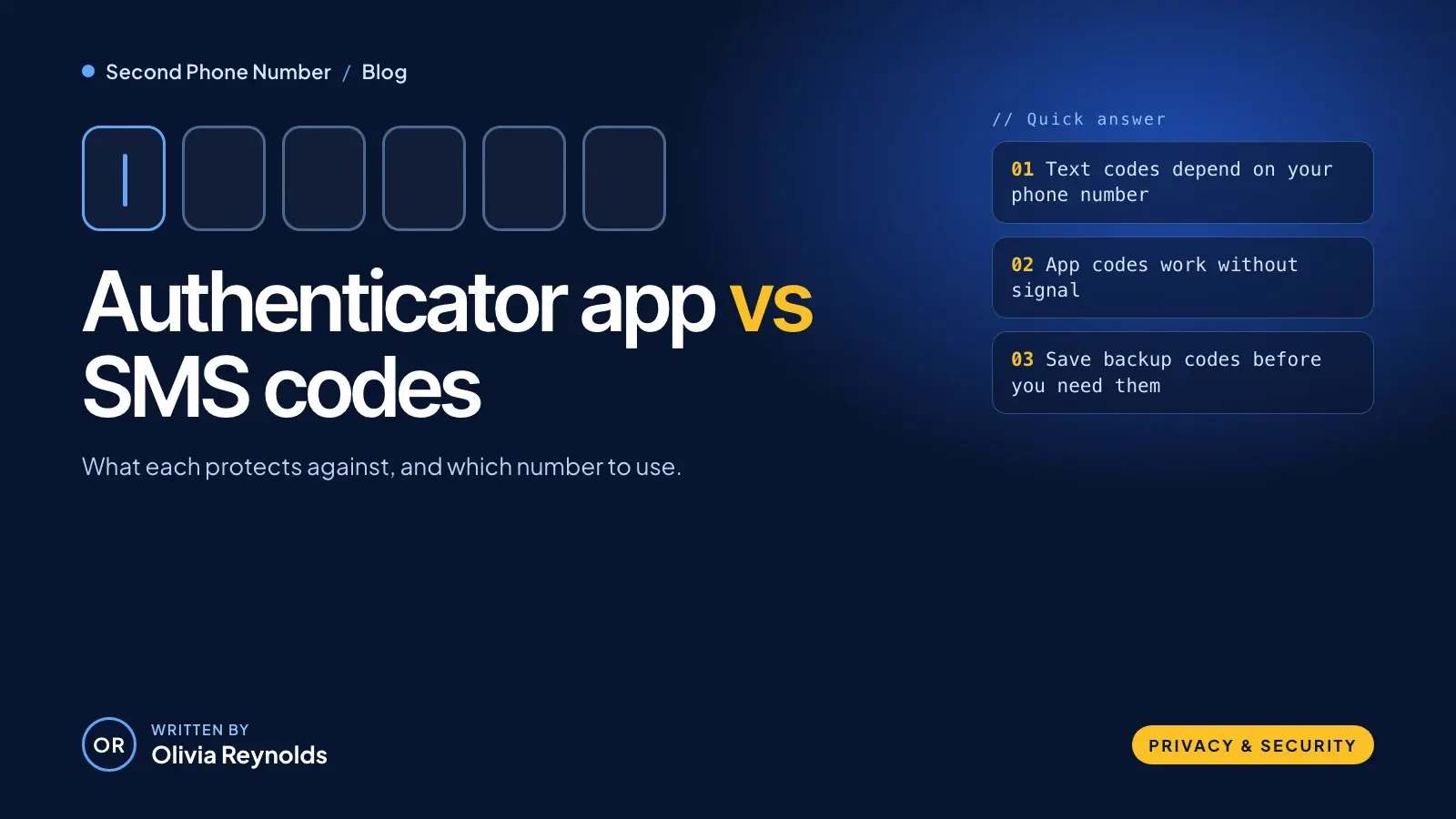
Quick answer
- Text codes depend on your phone number. App codes depend on your phone.
- An authenticator app is safer: SIM swaps don't affect it (CISA), and app codes work without signal.
- Both can be phished, so never type a code into a page you reached from a message.
- Save backup codes before you need them, and give a number you'll keep for recovery.
Authenticator app vs SMS: what's the difference?
Both give you a short code to type in after your password. That's two-factor authentication. The difference is where the code comes from.
- SMS verification codes are created by the service and sent to your phone number as a text message (or read out in a call). Whoever receives texts for that number gets the code.
- Authenticator app codes are created on your phone by an app such as Microsoft Authenticator or Google Authenticator. Once you've linked the app to an account, it makes fresh codes by itself, without receiving anything from the service. Microsoft describes codes that refresh every 30 seconds.
That one difference explains almost everything else:
| SMS codes | Authenticator app codes | |
|---|---|---|
| Tied to | Your phone number | Your phone (and its backup) |
| Needs signal | Yes, to receive the text | No, for the codes themselves |
| SIM swap risk | Yes | No |
| Phishing risk | Yes | Yes |
| If you lose your phone | Get your number back from your carrier | Restore from a backup, or use each account's recovery |
| If you lose your number | Codes go to whoever has it | Codes keep working |
| Setup effort | Type in a number | Scan a code for each account |
What does each one protect against?
SIM swaps and intercepted texts
The biggest weakness of text codes is that they follow your number, not your phone. In its fact sheet on phishing-resistant MFA (October 2022), the US Cybersecurity and Infrastructure Security Agency (CISA) describes a SIM swap as criminals convincing a carrier to transfer control of your phone number to a SIM card they control. It also warns that attackers exploit weaknesses in the SS7 phone network to get codes sent by text or voice.
CISA's table ranks the options from strongest to weakest. Text and voice codes come last: vulnerable to phishing, SS7 and SIM swap attacks, a method that "should only be used as a last resort MFA option." For app-based codes, CISA says SS7 and SIM swap attacks are "not applicable."
The US standards body NIST takes a similar line. Its SP 800-63B-4 guidelines call codes sent over the phone network (SMS or voice) a "restricted" authenticator and tell services to consider risk signs such as a SIM change or number porting before relying on them.
Phishing
Here the two are equal, and it's worth knowing. CISA lists app-based codes as "vulnerable to phishing attacks" too, and NIST says one-time code authenticators aren't phishing-resistant. CISA describes a widely used trick: an email sends you to a fake copy of a real login page, where you type your username, password and the six-digit code from your authenticator app. A code you got by text can be stolen the same way.
So the rule is the same for both: only type a code into a site or app you opened yourself, never one you reached from a link in a text or email, and never read a code out to someone who calls you. If a service offers a passkey or a security key, CISA calls phishing-resistant methods like FIDO/WebAuthn "the gold standard."
A lost or stolen phone
If you lose your phone and use text codes, you can usually get your number back on a new SIM. Google's help page says you can ask your carrier to transfer your number to a new phone or SIM card. With an authenticator app, the codes live on the phone, so you need a backup (more on that below) or each account's recovery options.
Travel and no signal
Text codes need a working connection to your number. GOV.UK lists no reception as one reason a code may not arrive. App codes don't have that problem: Microsoft's Authenticator FAQ says "The codes don't require you to be on the internet or connected to data, so you don't need phone service to sign in." Sign-in notifications you approve with a tap are different; Microsoft says those need an internet connection. If you travel a lot, our guide to using a second phone number abroad covers the rest of your phone setup.
What official guidance says about SMS codes
Don't switch text codes off without a replacement. The UK's National Cyber Security Centre puts it plainly in its 2-step verification guide: "Text messages are not the most secure type of 2SV, but still offer a huge advantage over not using any 2SV." It calls authenticator apps the main alternative to text messages and names Google Authenticator and Microsoft Authenticator as examples. CISA agrees that any form of MFA is better than none.
In practice:
- Turn on 2-step verification everywhere it's offered, even if text is the only option.
- Where a service offers an authenticator app, use it for your email, bank and other key accounts.
- Where it offers a passkey or security key, consider that for the accounts that matter most.
How GOV.UK One Login handles codes
GOV.UK One Login shows the choice in action. According to GOV.UK's guidance (last updated 28 July 2026), you can get security codes either by text message to a UK phone number or from an authenticator app, which you can use on a smartphone, tablet or desktop computer.
Two details are easy to miss:
- UK numbers only for texts. GOV.UK says you can't get a security code by text if your phone number is registered outside the UK. If you live abroad or use a non-UK number, you'll need an authenticator app or a UK mobile number.
- Set up a back-up method. GOV.UK's sign-in details page explains that if you lose access to your phone number, you can sign in with a back-up method, such as another UK phone number or an authenticator app. Without one, changing how you get codes may mean proving your identity with the GOV.UK ID Check app, or contacting GOV.UK One Login.
How to set up account recovery so you don't get locked out
An authenticator app only helps if you can still get in when your phone dies. Do these three things first.
Back up Microsoft Authenticator on your iPhone
Microsoft's backup instructions for iPhone say to turn on iCloud Drive, iCloud Keychain and iCloud Backup, and to enable Authenticator under Saved to iCloud. Its FAQ adds that you should be on version 6.8.33 or later and open the app at least once before you switch phones. Know the limits, too:
- Accounts backed up on an iPhone can't be restored on an Android phone.
- Work or school account credentials aren't backed up, so you'll need to sign in and register those accounts again on your new phone.
Save your backup and recovery codes
Many services that offer an authenticator app also offer one-time backup codes. The NCSC says each one works only once and you'll need to store them somewhere safe. For a Microsoft account, Microsoft's recovery code page describes a 25-digit code: print it, keep it in a safe place, and don't store it on a device you use to sign in. Creating a new code stops the old one from working.
Add a second way in
The NCSC says it's a good idea to have a backup plan in case you can't get to your usual second step. Google, for example, lists another phone number, backup codes, a security key or a passkey as backup options. Add at least one that doesn't depend on the phone you carry every day.
Which phone number should you give for SMS codes and recovery?
Even with an authenticator app, many accounts still ask for a phone number for recovery. Your phone number is often the master key to your other accounts, as we explain in how phone numbers are used in account hacking, so pick it carefully.
- For key accounts, use a number you'll keep. Your main email, bank and government logins should use the number you're least likely to lose or change. If you let a number go, codes and reset links sent to it won't reach you.
- Check the service's rules. Some services don't accept every number type for codes. Google warns: "If you use Google Voice to get verification codes, you could lock yourself out of your account." GOV.UK only sends text codes to UK numbers.
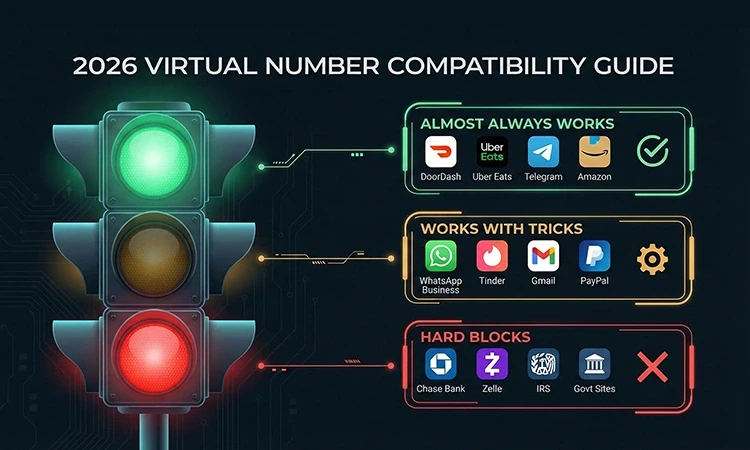
- Use a second number where it fits. A second number is useful for shopping, marketplaces, newsletters and other sign-ups where you'd rather not hand out your main number. Second Phone Number gives you a US or Canada number on your iPhone for calls, texts and voicemail, and you can hold up to 3 numbers on one account. Because it lives in an app rather than on a SIM, some services may not accept it for verification codes, so check our verification compatibility guide and the service's own help page first.
- Don't rely on any single number alone. Whichever number you use, pair it with an authenticator app or backup codes.
The bottom line
In the authenticator app vs SMS choice, the app wins for most people: SIM swaps don't touch it and its codes work without signal. Text codes still beat having no second step at all, and both can be phished, so only enter codes on sites you opened yourself. Before you switch, back up your authenticator, save your recovery codes, and give your key accounts a phone number you'll keep. Use a second number for privacy on the sign-ups where your main number doesn't need to be.
Frequently asked questions
Is an authenticator app safer than SMS codes?
For most people, yes. CISA's guidance says codes sent by text are open to SIM swap attacks and to interception over the phone network, while codes from an app aren't. Both can still be phished, so never type a code into a page you reached from a link in a message.
Does Microsoft Authenticator work without signal or Wi-Fi?
Its six-digit codes do. Microsoft says the codes don't need an internet or data connection, so you don't need phone service to sign in. Sign-in notifications that you approve with a tap do need an internet connection.
What happens to my authenticator codes if I lose my iPhone?
If you turned on Microsoft Authenticator's iCloud backup beforehand, you can restore your personal and third-party account codes on a new iPhone. Work or school account credentials aren't backed up, and an iPhone backup can't be restored on Android. Without a backup, you'll need each account's own recovery options.
Can I use a US or Canadian number for GOV.UK One Login text codes?
No. GOV.UK says you can't get a security code by text if your phone number is registered outside the UK. You can use an authenticator app instead, on a phone, tablet or computer.
Which phone number should I give for verification codes and account recovery?
Use a number you plan to keep for years, usually your main mobile number, for your most important accounts and their recovery. A second number works for sign-ups and less critical accounts where the service accepts it, but always add a backup method too.
Should I still use SMS codes if they're the weakest option?
Yes, if it's the only option a service offers. The NCSC says text messages aren't the most secure type of 2-step verification but still offer a huge advantage over not using any. Switch to an app or passkey when the service supports one.
- SIM swap
- account recovery
- two-factor authentication
- authenticator apps
- verification codes